
Every screen, explained
A guided walk through the two consoles you run the business from — the at-a-glance overview dashboard and the hands-on PickIt ShipIt operational console. Representative screens with sample data for a fictional distributor.
Orientation
Two consoles, one stack
They serve different jobs. One is for seeing; the other is for doing.
The overview dashboard
A read-only, at-a-glance view of the whole business — revenue, inventory, quotes, shipments, and alerts. Built for the warehouse wall and the morning glance. Updates live.
The PickIt ShipIt console
Where work gets done: quoting, picking, packing, shipping, and receiving. Scan-driven and action-oriented, one screen per job.
The overview dashboard
The whole business at a glance
Left running on a TV or open on a phone — the numbers and alerts that tell you where to spend the next hour.
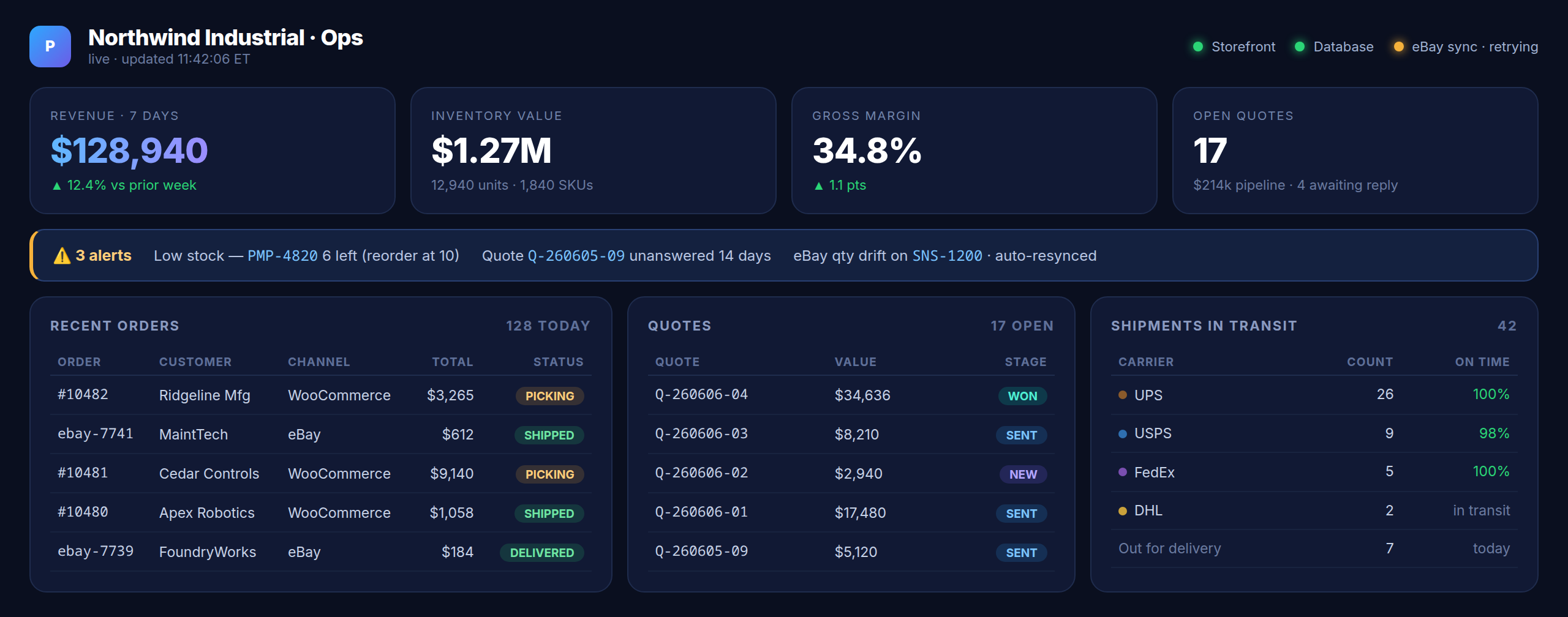
Reading it top to bottom:
Header & health pips
Your name, a live “updated” timestamp, and green/amber/red pips for the storefront, database, and each channel sync — so you see an integration problem before a customer does.
KPI strip
Revenue (7-day, with week-over-week change), inventory value (units and SKUs), gross margin (with trend), and open quotes (pipeline value and how many await a reply).
Alerts bar
The day’s action list, color-coded by severity: low-stock SKUs hitting their reorder point, quotes going cold, and sync drift that was already auto-corrected.
Recent orders
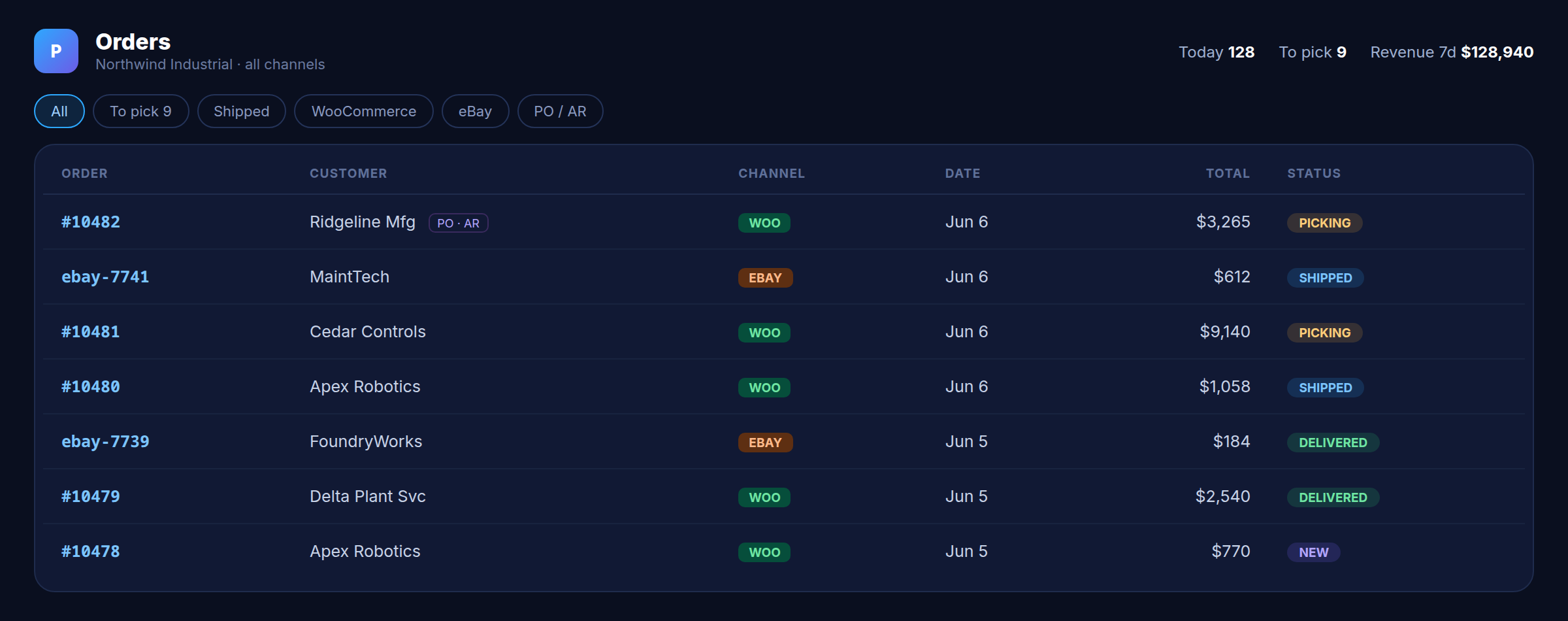
The latest orders across channels — order number, customer, channel (WooCommerce or eBay), total, and a status badge (picking, shipped, delivered).
Quote pipeline
Open quotes with their value and stage (new, sent, won), so the B2B side is visible next to the orders it turns into.
Shipments in transit
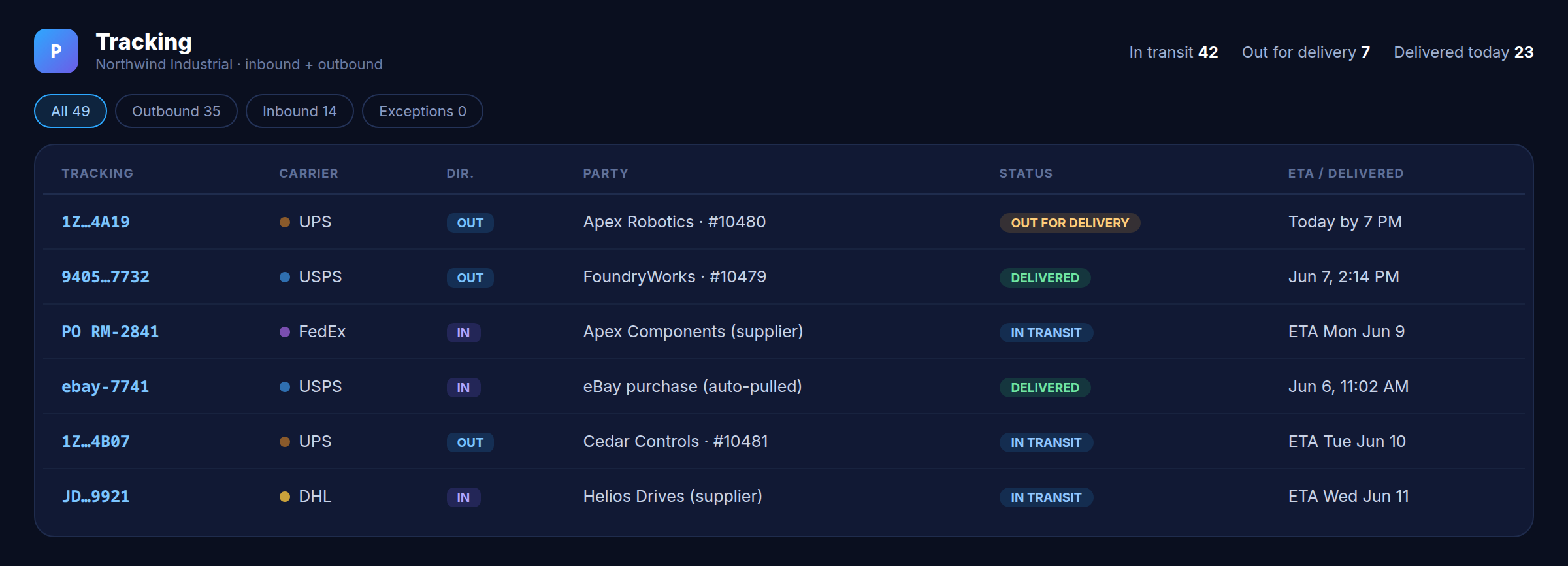
A live count by carrier (UPS, USPS, FedEx, DHL) with on-time rate, plus how many are out for delivery today.
 PLCXBOT keeps it honest behind the scenes — an hourly self-healing watchdog and automatic backups.
The PickIt ShipIt console
Every screen where work gets done
One screen per job, scan-driven and fast. Here’s each one in full.
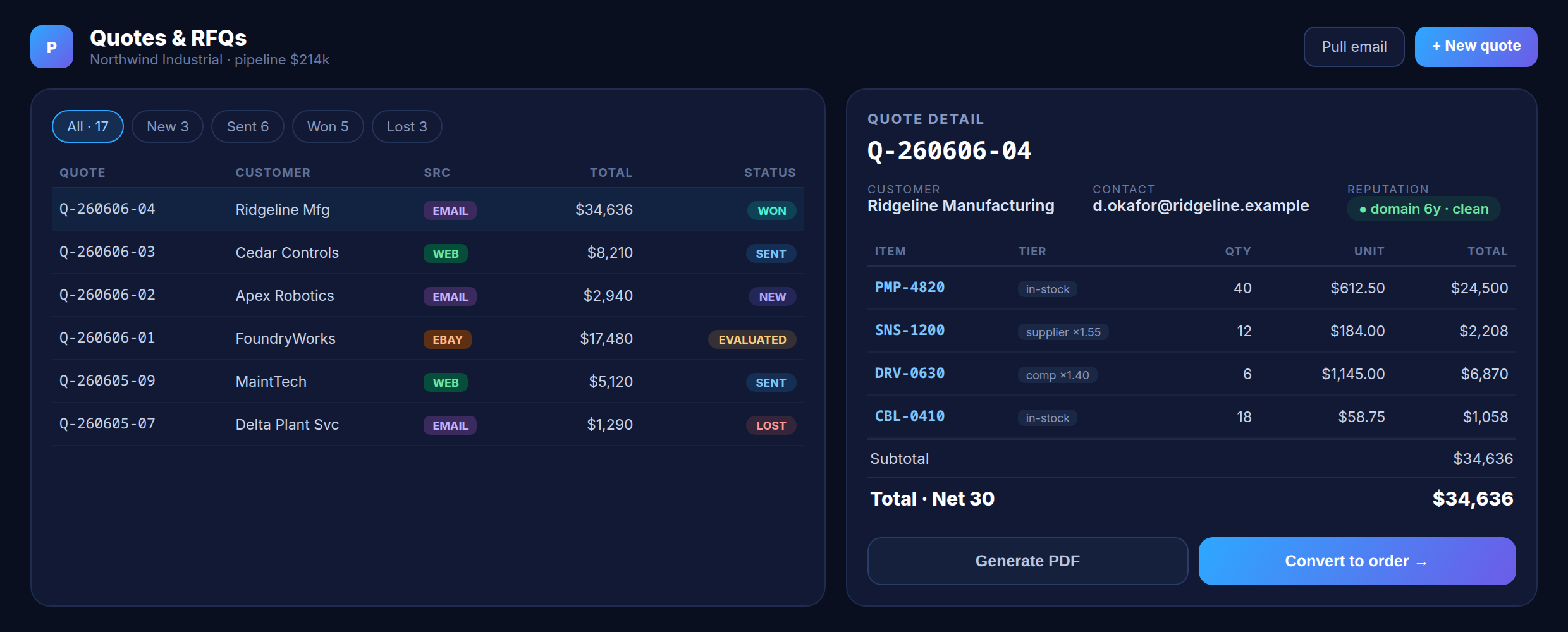
Quotes & RFQ
The B2B quote desk: a filterable pipeline on the left, the live quote on the right.
Status filters
Jump between all, new, sent, won, and lost — each with a live count, and total pipeline value up top.
Pipeline list
Every quote with customer, a color-coded source pill (web, email, eBay), total, and status badge.
Quote detail
Customer and contact, plus a sender-reputation badge (domain age and disposable-domain check) so reps ignore junk.
Priced line items
Each line tagged with the tier it priced from — in-stock, supplier ×1.55, or competitor ×1.40.
Actions
Generate the branded PDF, or convert a won quote straight to an order with its PO and A/R.
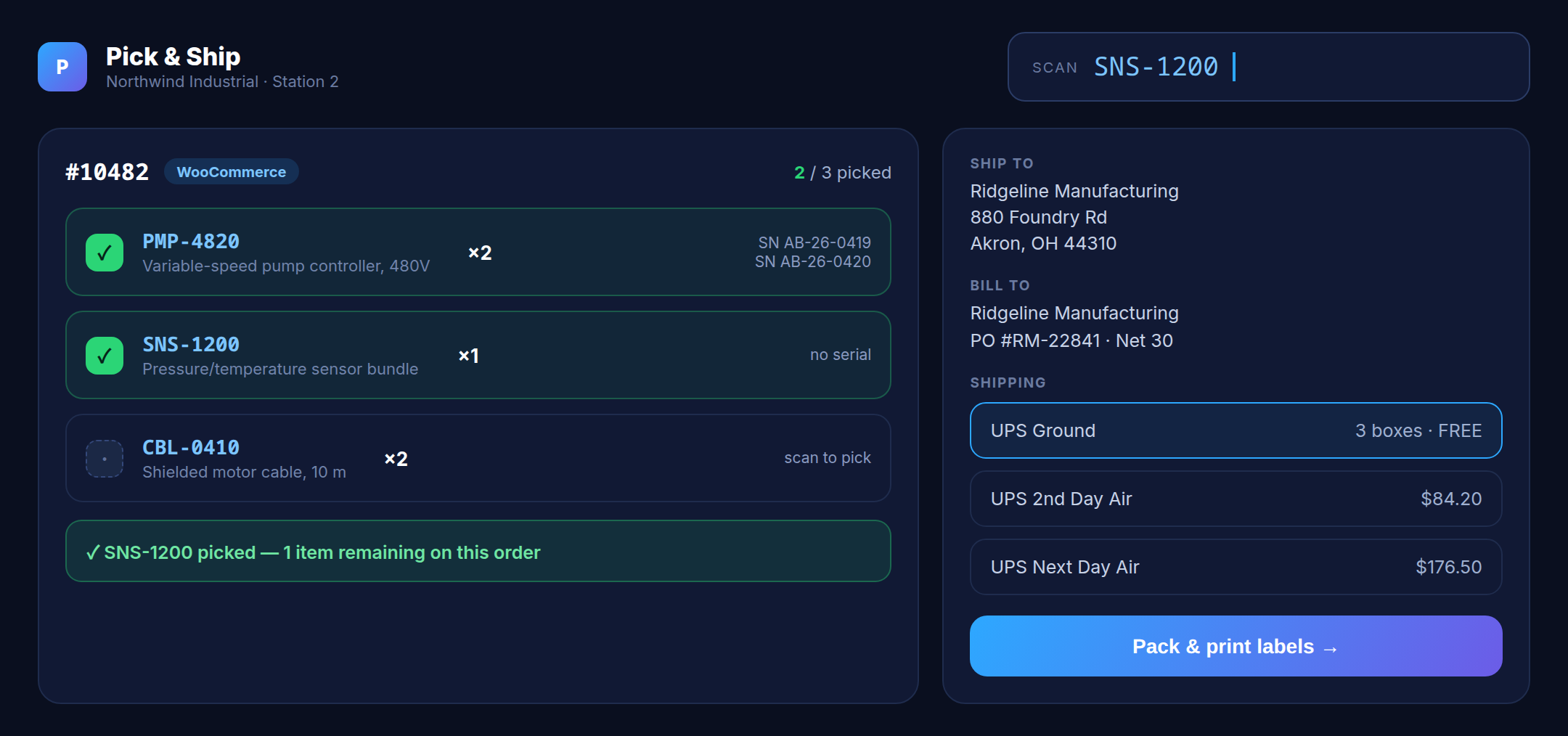
Pick & Ship
The warehouse station: scan to pick, then pack and print in one move.
Scan field
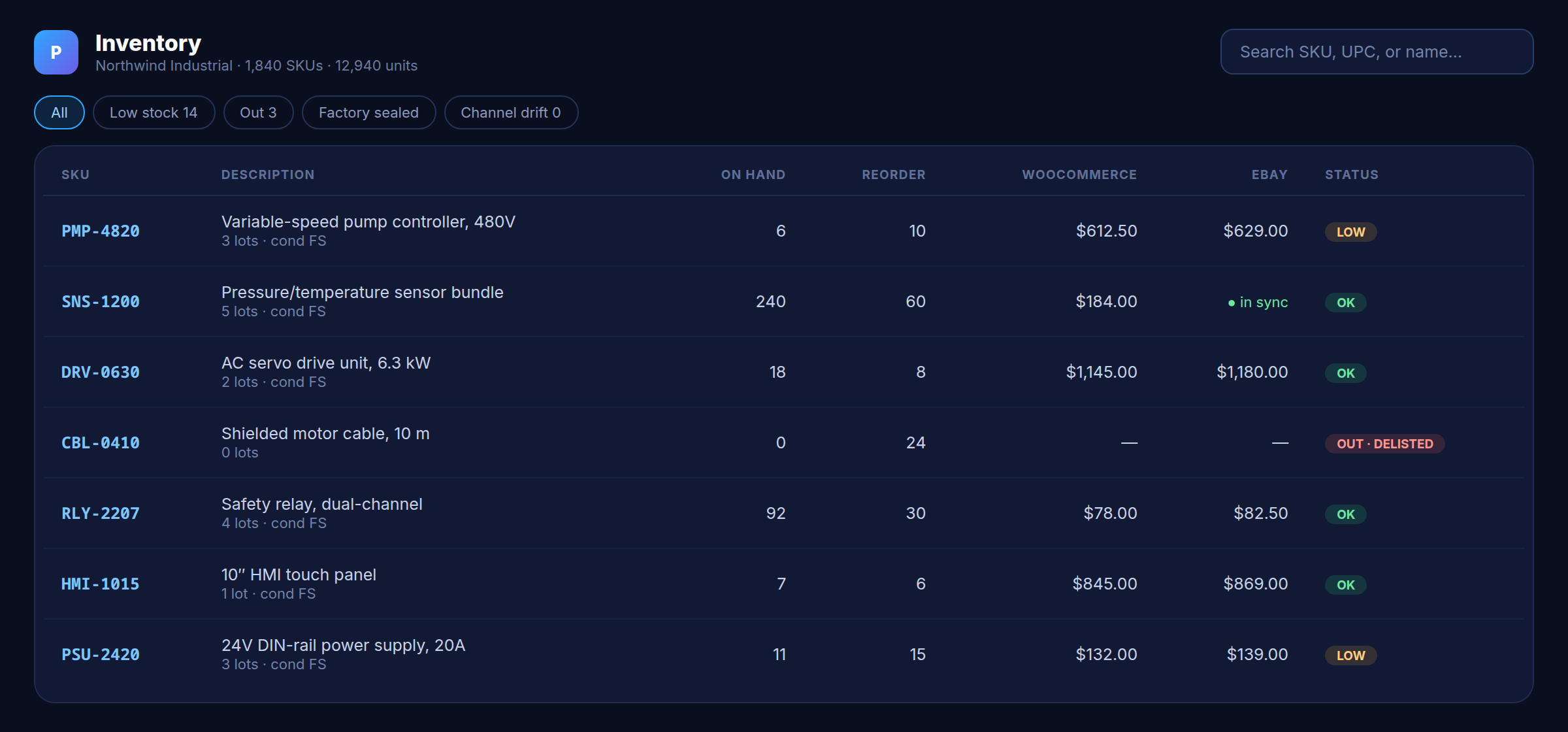
Scan an order or item barcode; it resolves against the inventory ledger and advances the pick queue.
Order card
Items to pick with quantities and a progress count; picked lines turn green and capture serial numbers where needed.
Addresses
Ship-to and bill-to, including PO number and terms for B2B orders.
Carrier & pack
Pick a service (Ground, 2nd Day, Next Day) and hit pack — one multi-box call returns every label and tracking number.
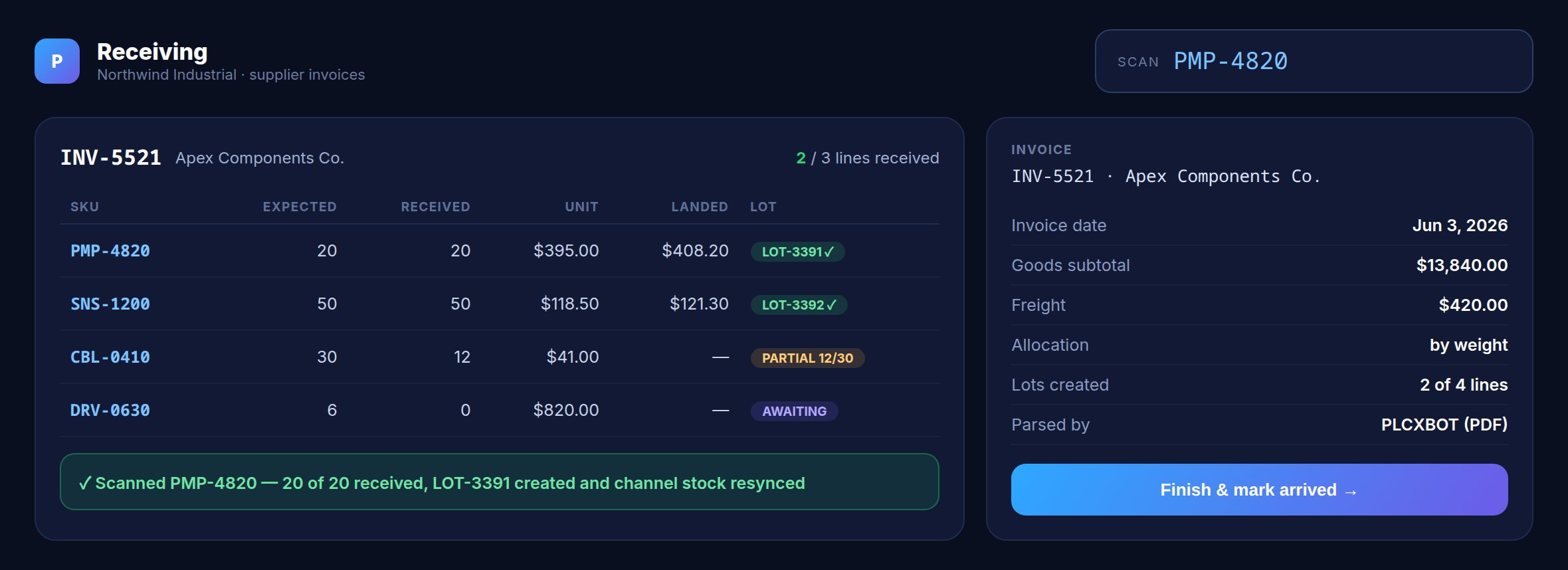
Receiving
Turn a supplier invoice into stock by scanning the box.
Scan to receive
Scan items against the invoice’s expected lines; counts update line by line.
Lines & states
Each line shows expected vs received, unit and landed cost, and its lot — with partial and awaiting states for split deliveries.
Lots created
Received quantities become FIFO lots with landed cost baked in, and channel stock resyncs automatically.
Invoice panel
Supplier, date, freight, and allocation method — the PDF was parsed by PLCXBOT, with AI fallback for unfamiliar formats.
More console screens
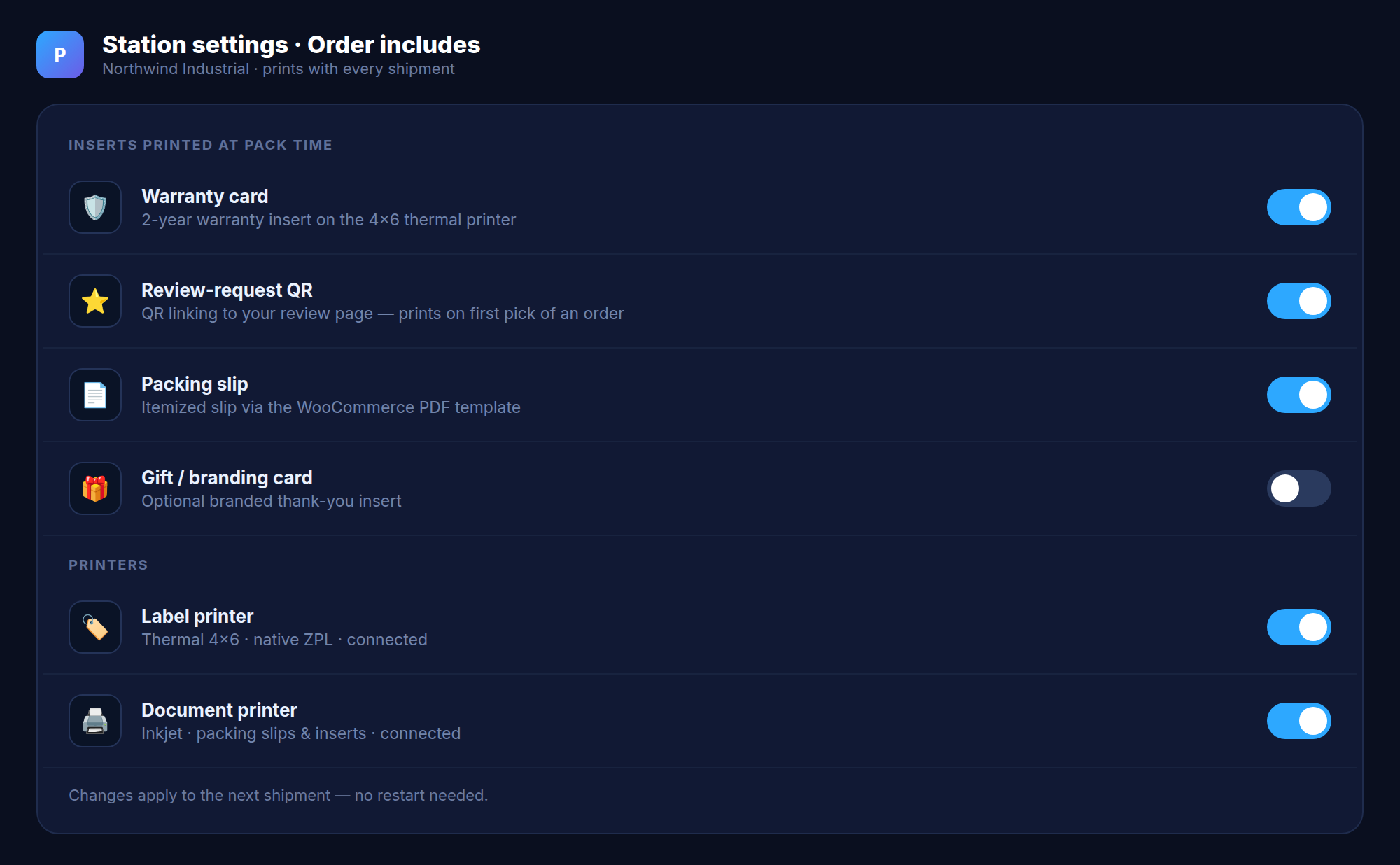
The rest of the day-to-day
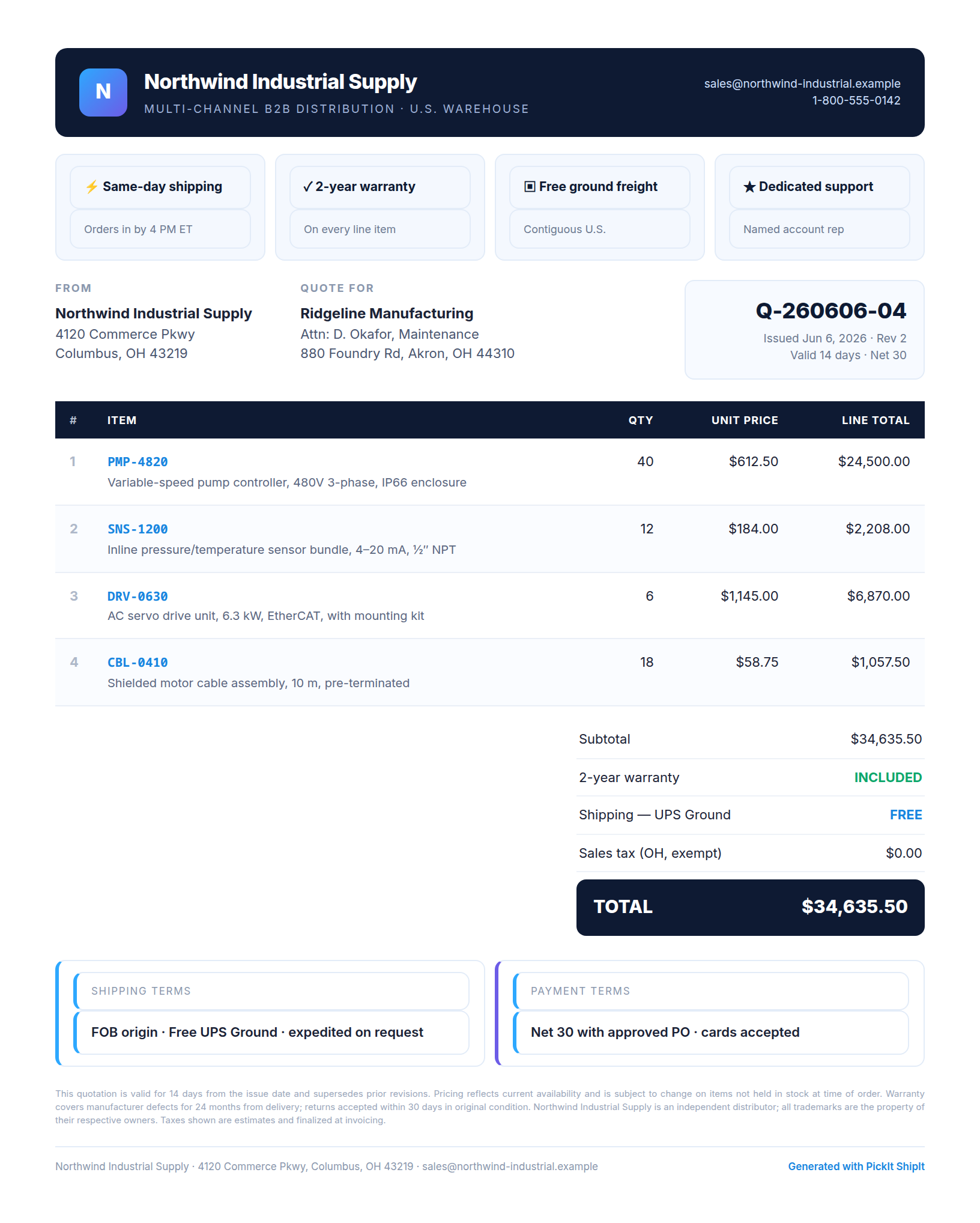
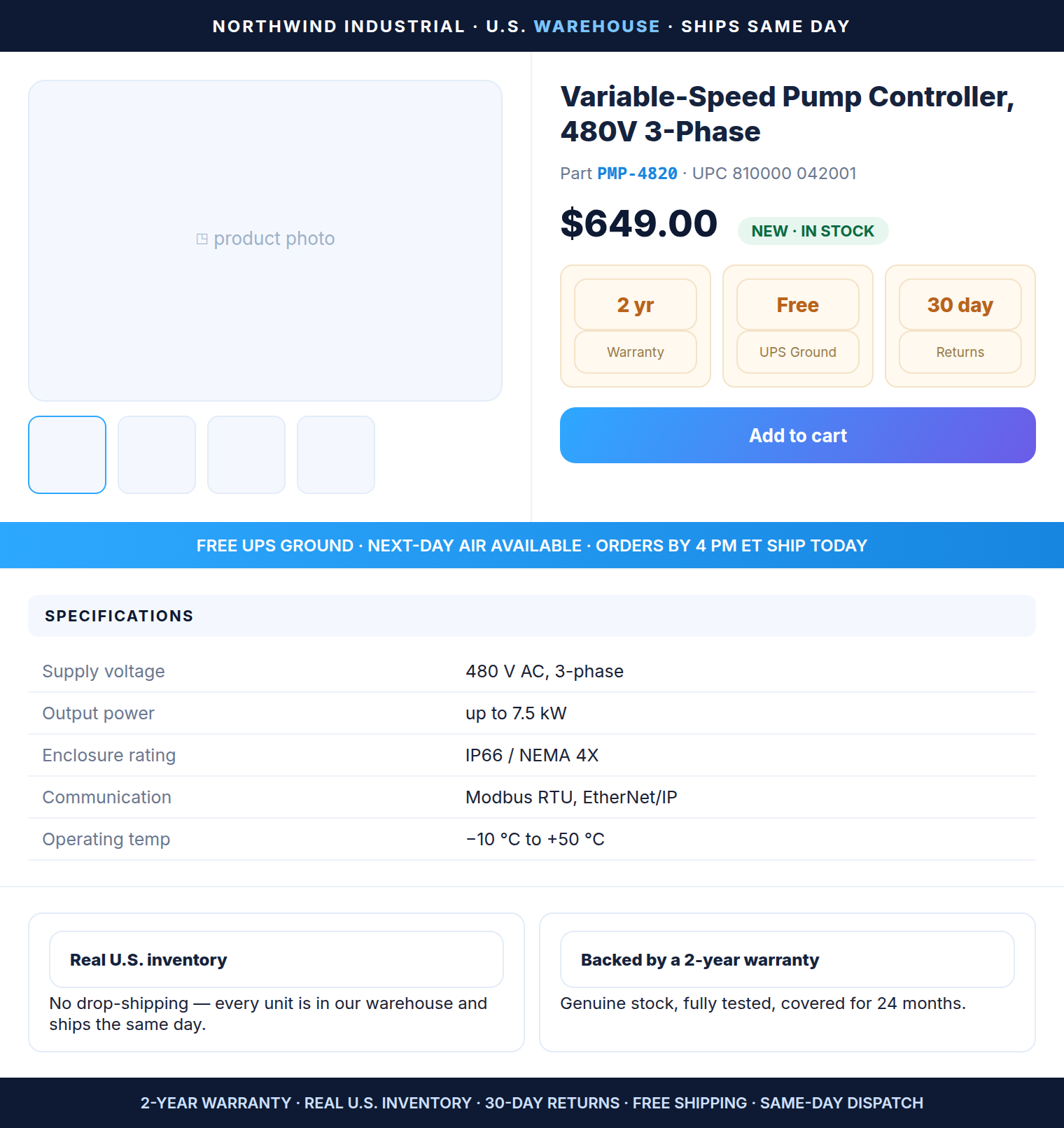
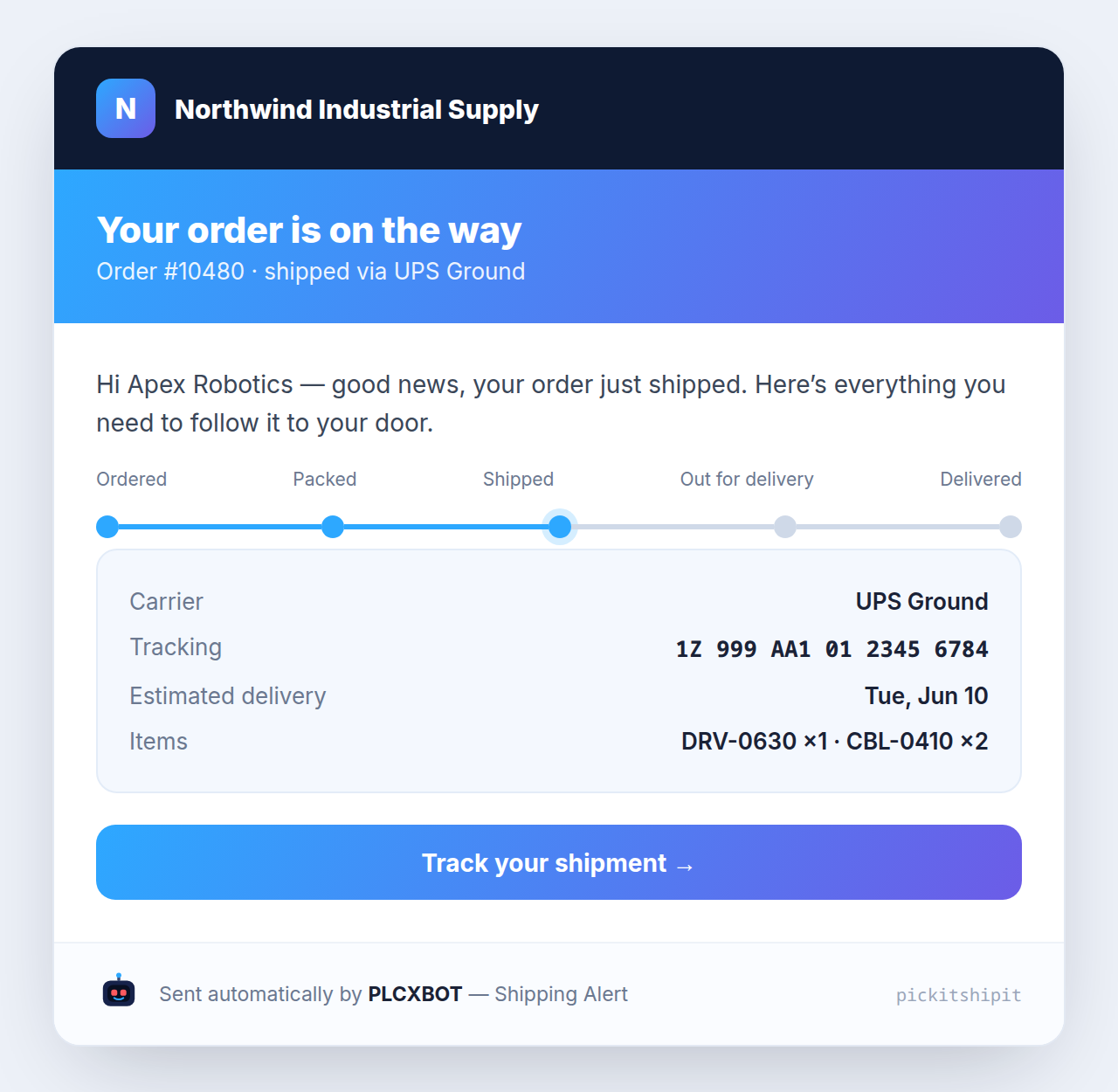
Templates
The documents & emails PLCXBOT produces
Branded to your business, generated automatically, and consistent every time — quotes, listings, and the full lifecycle email set.
Behind every screen
PLCXBOT runs the busywork
The screens are where you make decisions. PLCXBOT does the rest — quietly, around the clock.
- Sends every lifecycle email and signs them
- Parses supplier-invoice PDFs into receivable lines
- Drafts quotes and product descriptions for your review
- Watches the stack and self-heals — with backups
Want a live walkthrough?
We’ll demo every screen on a real instance and map it to your store.
Book a demo